Filtering
Filtering resources is performed by modifying an endpoint URL. The filter is always composed of a URL segment that defines a column to filter against and then a URL segment that specifies the value to filter by - column/value.
Example
Filters can be combined to create complex expressions. This is an example of a URL that uses all available filtering options:
https://demo.slashdb.com/db/Chinook/Customer/CustomerId/1..100/FirstName/A*,B*,C*/~LastName/Rocha/~Company/%3Cnull%3E/FirstName,LastName,Company?limit=100
This retrieves the FirstName, LastName, Company columns for all records in the Customer resource that:
- have a CustomerId value between 1-100 AND
- have a FirstName value beginning with "A" OR "B" OR "C" (case sensitive) AND
- where the LastName value is NOT "Rocha" AND
- where the Company value is NOT null
This would be equivalent to a SQL statement like:
SELECT "FirstName", "LastName", "Company" from "Customer"
WHERE
"CustomerId" BETWEEN 1 AND 100 AND
("FirstName" LIKE 'A%' OR "FirstName" LIKE 'B%' OR "FirstName" LIKE 'C%') AND
"LastName" != 'Rocha' AND
"Company" IS NOT NULL
Filtering in the GUI
 In Data Discovery mode, SlashDB supports applying filters and modifiers directly in the GUI. Use the Filters button to open an aside panel with the filtering options:
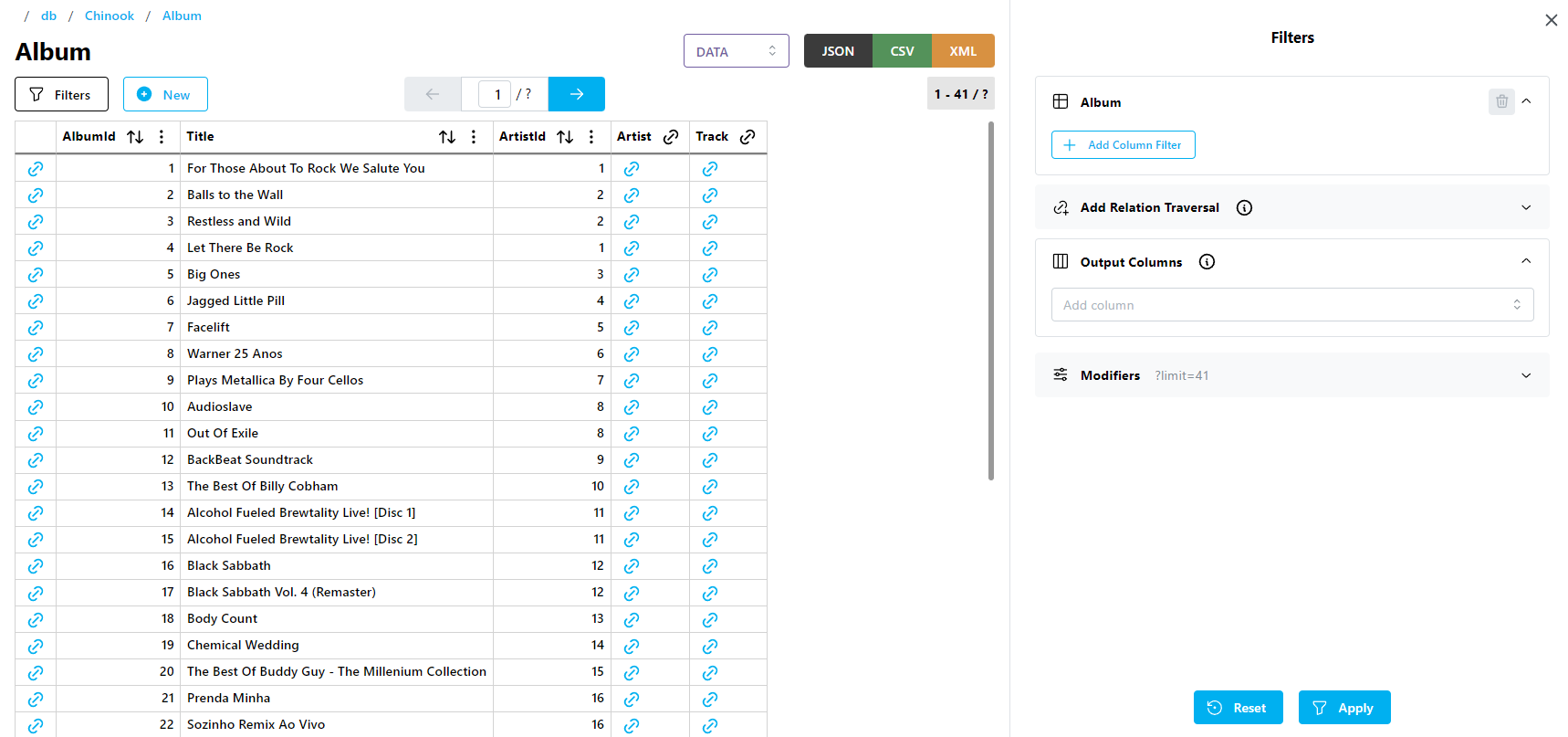
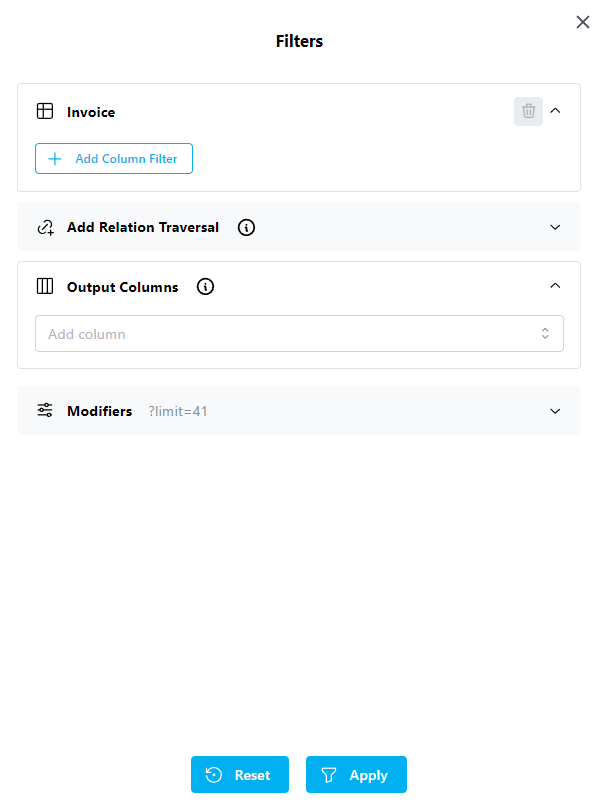
When the aside panel is opened, this is the default view. The currently selected columns are displayed, along with any filters or traversals that are active.
Clicking the Apply button will refresh the view after making any changes.
Clicking the Reset button will reset all modifiers to the default (limit only), and remove all filters and traversals.
Filters & Traversals
The default Filters element appears empty, as below.
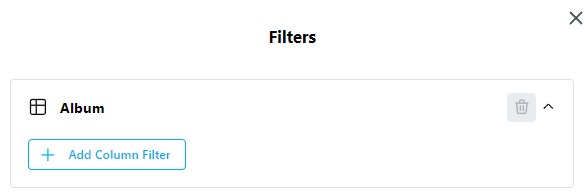
Clicking the Add Column Filter will insert a new column filter element, with options:
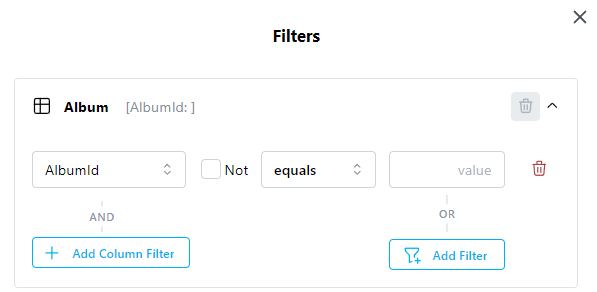
Looking at the new filter element, from left to right, you can:
- select the column to filter on
- negate the filter
- set the filter condition - options vary based on data type
- set the filter value - input will be restricted by data type (e.g. no text value can be entered for a numeric column)
- remove the filter
Click the Apply button button to activate the new filter, or click the Reset button to reset the view to the default.
You can also create another filter by using one of the two buttons below the element:
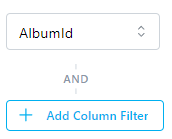
The Add Column Filter button on the left will join the existing filter with a new column filter - an AND filter. Clicking it creates a new column filter element, with all the same options as the one above it.
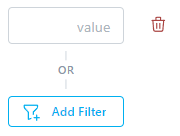
The Add Filter button on the right will create an OR filter using the existing column. Clicking it creates an additional filter element for the existing column, with inputs to set the filter condition and value.
The available filter conditions are dependent on the column data type.
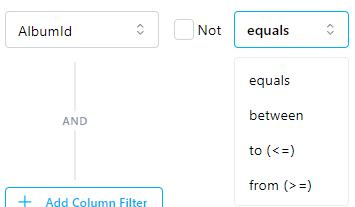
For numeric columns, equality and range conditions are available.
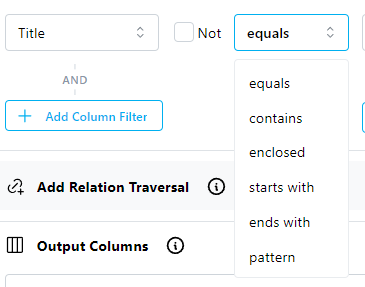
For textual columns, equality and string comparison conditions are available.
To traverse to a related resource, expand the Add Relation Traversal element and select a resource from the dropdown menu.
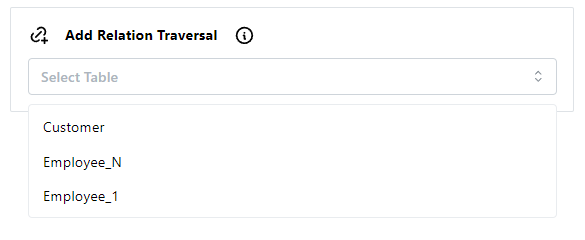
First, you select a related resource.
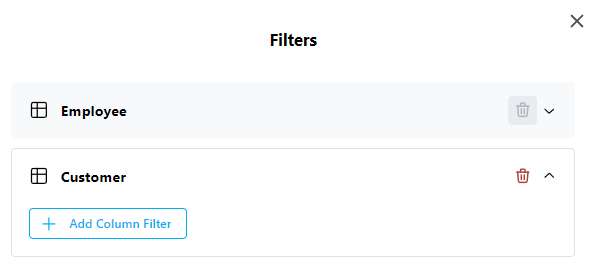
Then, you can add any desired filters for the related resource.
Click the Apply button button to update the view with the new traversal, or click the Reset button to reset the view to the default.
Important
Any time you add a relation, the Output Columns and Sort Columns modifiers will be reset.
Output Columns
Use the Output Columns dropdown to select which columns are included in the view. By default, all columns from a resource are included.
Clicking the Apply button at the bottom of the panel will refresh the current view with only the selected columns.
Modifiers
Expanding the Modifiers element will display the different view modifiers that can be set. Various options can be set, along with configuring the view sorting. See the Modifying Output page for more details about these options.
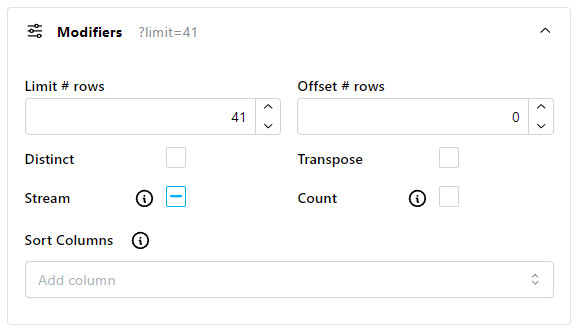
Clicking the Apply button at the bottom of the panel will refresh the current view with all of the selected modifiers.
Filter Data Types
- String - alphanumeric values, with support for non-ASCII characters with urlencoding
- Number - integers or decimal/floating values
- NULL - represented by the string
<null> - Date - ISO format (YYYY-MM-DD)
-
Datetime - ISO formats:
- YYYY-MM-DD hh:mm:ss
- YYYY-MM-DD hh:mm:ss.uuuuuu
- YYYY-MM-DDThh:mm:ss
- YYYY-MM-DDThh:mm:ss.uuuuuu
where:
YYYY - four digit year e.g. 2018
MM - two digit month e.g. 12
DD - two digit day e.g. 31
hh - two digit hour e.g. 23
mm - two digit minute e.g. 59
ss - two digit second e.g. 59
uuuuuu - six digit microsecond e.g. 999999
Filter Types
Exact Value
Exact value filters are the simplest type. Filters a column against a single value.
Usage:
/[column_name]/[value]
Examples:
/db/Chinook/Customer/Country/USA - get Customer records where Country is "USA"
OR
Separate values with , (comma) to filter by multiple values. This works like the OR SQL operator.
Usage:
/[column_name]/[value1],[value2]
Examples:
/db/Chinook/Customer/Country/USA,Canada - get Customer records where Country is "USA" or "Canada"
AND
Join filter segments together to filter against multiple columns, equivalent to the SQL AND operator. You can join as many column/value pairs as you need.
Usage:
/[column_A]/[value_for_A]/[column_B]/[value_for_B]
Examples:
/db/Chinook/Customer/Country/USA/City/New York - get Customer records where Country is "USA" and City is "New York"
NOT (negation)
Negation can be applied to any filter (e.g. Exact Value, OR, AND, etc.) to filter out records that do not match the filter.
Prefix the filtered column with the ~ (tilde) character to invert the filtering condition for that column.
Usage:
/~[column_name]/[value]
Examples:
/db/Chinook/Customer/~Country/USA - get Customer records where Country is not "USA"
/db/Chinook/Customer/~Country/USA,Canada - get Customer records where Country is not "USA" or "Canada"
/db/Chinook/Track/~TrackId/1..3495 - get Track records with TrackId values outside of the range of 1 to 3495.
Filter by Substring
Filter by matching substring. Uses the * (asterisk) character as a wildcard.
Usage:
/[column_name]/[starts_with_string]*
/[column_name]/*[ends_with_string]
/[column_name]/[starts_with_string]*[ends_with_string]
/[column_name]/*[contains_string]*
Examples:
/db/Chinook/Customer/LastName/M* - get Customer records with LastName values starting with letter "M"
/db/Chinook/Customer/LastName/M*r - get Customer records with LastName values starting with letter "M" and ending with letter "r".
/db/Chinook/Customer/City/*ar* - get Customer records with City values that contain "ar" in their names.
For cases where you need to use the asterisk character as a literal value in a URL, you can override the default wildcard character.
Filter by Range
For numeric values (integer, float, date), you can filter records by a range of values. The range operator syntax lets you specify ranges that are any of:
- greater than or equal to
- less than or equal to
- between
Usage:
/[column_name]/[value]..
/[column_name]/..[value_to]
/[column_name]/[value_from]..[value_to]
Examples:
/db/Chinook/Invoice/Total/9.91.. - get Invoice records where Total values are ≥ 9.91
/db/Chinook/Invoice/Total/..1.98 - get Invoice records where Total values are ≤ 1.98
/db/Chinook/Invoice/CustomerId/1..5.html - get Invoice records where CustomerId values are between 1 and 5.
Filter by Multiple Ranges
This feature is combination of filter by range and OR filtering. You can filter columns by using multiple values or ranges. It works with numeric columns only, i.e. numbers, date, time and datetime.
Usage:
/[column_name]/[value1],[value2]
/[column_name]/[value1]..[value2],[value3]
/[column_name]/[value1]..[value2],[value3]..[value4]
/[column_name]/..[value1],[value2],[value3]
Examples:
/db/Chinook/Invoice/CustomerId/1..3,5.html - get Invoice records where CustomerId values are either:
- between 1 and 3
- equal to 5
/db/Chinook/Invoice/CustomerId/1..3,5..7.html - get Invoice records where CustomerId values are either:
- between 1 and 3
- between 5 and 7
/db/Chinook/Invoice/CustomerId/..3,5,7.html - get Invoice records where CustomerId values are either:
- less than 3
- equal to 5
- equal to 7
Filter NULL values
To filter by NULL values, use the <null> keyword in URLs.
If you want to use a custom placeholder, you can use the nullStr URL query string parameter (modifier).
Examples:
/db/Chinook/Customer/State/<null>.html - get Customer records where State is NULL.
/db/Chinook/Invoice/CustomerId/1..3,<null>.html - get Invoice records where CustomerId values are either:
- between 1 and 3
NULL
/db/Chinook/Employee/ReportsTo/1..3,$null.html?nullStr=$null - get Employee records where ReportsTo values are either:
- between 1 and 3
NULL, using a URL placeholder value of$null
Selecting Columns
You can retrieve specific columns from records. See the sections about selecting single columns or multiple columns.